Exports
LightBurn-ready engraving files
The file is only useful if it opens at the right size and is not processed twice. Every export carries your DPI, and the LightBurn project is set up so the dots you checked are the dots that burn.
Four formats
One Click, Easy Mode and Batch all export the same four formats:
- PNG: universal, with the DPI embedded. Most laser software opens it.
- BMP 1-bit: pure black and white, the smallest honest form of a dithered file.
- BMP 24-bit: uncompressed, for software that does not accept 1-bit BMP.
- LightBurn project (.lbrn2): opens straight in LightBurn with the image already at the right physical size.
What the .lbrn2 project sets up
The project holds one image, sized in millimetres from the pixel size and your DPI, so a 4 in file at 254 DPI opens 101.6 mm wide. It sets the image's line interval to 25.4 ÷ DPI, so the laser engraves one line per row of dots. Because our file is already dithered, the image mode is set to threshold, which stops it being dithered a second time.
You still choose speed and power for your machine and material, frame the job and burn. We do not drive the laser: the file goes into your laser software, which does.
Why DPI in the file matters
A file is just pixels until something says how big each pixel is. If your software ignores the DPI, or the DPI is missing, it guesses, and a 1016 pixel file can open at the wrong physical size. The engraving then comes out too big or too small, and the line spacing no longer matches the dots. PNG and BMP exports carry the DPI, and the .lbrn2 project sets size and line interval explicitly. If an image ever opens at the wrong size, check that the import DPI matches the DPI you prepared it at.
Inverted and mirrored files
On materials that mark lighter than the surface, such as black slate, anodized aluminum and painted tile, the preset inverts the file. Do not invert it again in your laser software. For glass and clear acrylic, which are usually engraved from the back, Mirror is on by default so the image reads correctly from the front. Turn it off if you engrave the front face.
Which one to pick
If you use LightBurn, the .lbrn2 project saves the most setup. For other software, start with PNG. Use 1-bit BMP when your software or a machine's own tool wants pure black and white, and 24-bit BMP only when 1-bit is not accepted. Whatever you choose, keep image adjustments off in your laser software: the tone, dither and inversion are already in the file.
Step by step
Prepare the file
Use One Click or Easy Mode with the right material, size and DPI for your laser.
Pick LightBurn in Export
Choose the LightBurn .lbrn2 project, or PNG or BMP for other software.
Open it in your laser software
Open the .lbrn2 file. The image is already at its physical size, with the line interval and threshold mode set.
Set speed and power
Choose speed and power for your machine and material. Run a small test on scrap if you are unsure.
Frame and burn
Place the image on the blank, frame the job to check position, then engrave.
Questions
Short, specific answers. Every material and tool is in the guides.
- Will the .lbrn2 file open at the right size?
- Yes. The image is sized in millimetres from its pixel size and the DPI you prepared it at.
- Do I need to set the dither mode in LightBurn?
- No. The project sets the image mode to threshold, because the file is already dithered. Dithering it again would ruin the dot pattern.
- Does the project include speed and power?
- You set speed and power for your own machine and material. They depend on the laser, the lens and the blank.
- Which format should I use if I do not use LightBurn?
- PNG with the DPI embedded works in most software. Use 1-bit BMP when your software wants pure black and white.
- Why does my slate file look like a negative?
- Slate marks lighter than the surface, so the preset inverts the file. Do not invert it again. See laser engraving on slate.
- Can Batch export LightBurn projects?
- Yes. File type is part of a recipe, so a whole folder can come out as .lbrn2 projects. See batch preparing photos.
Keep going
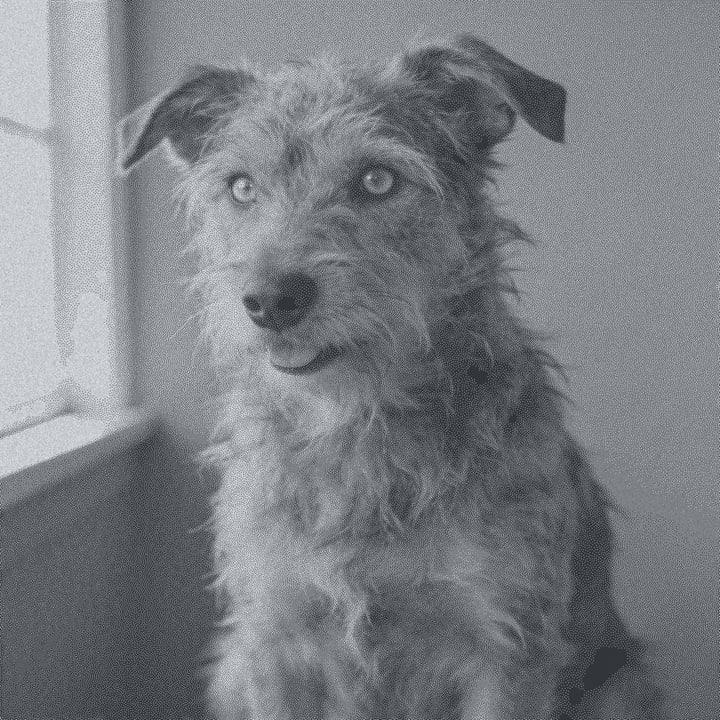
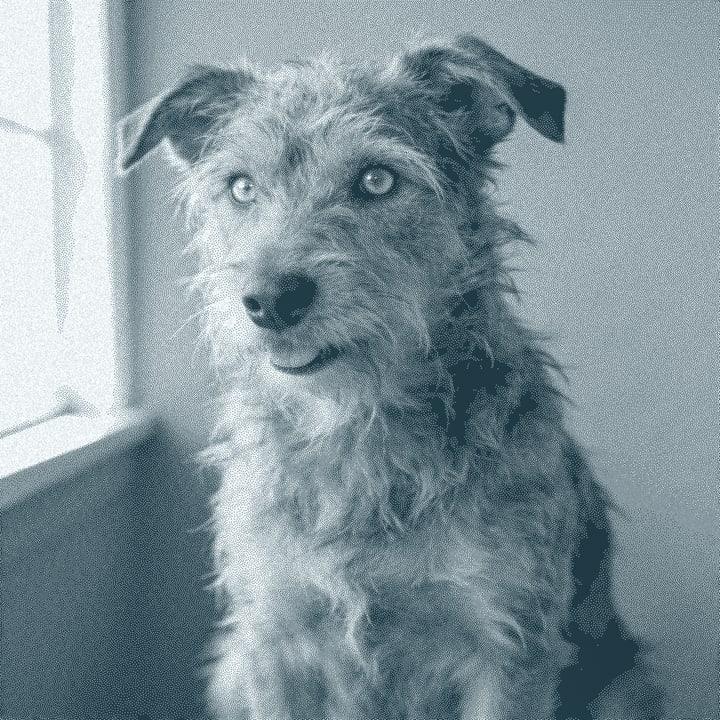
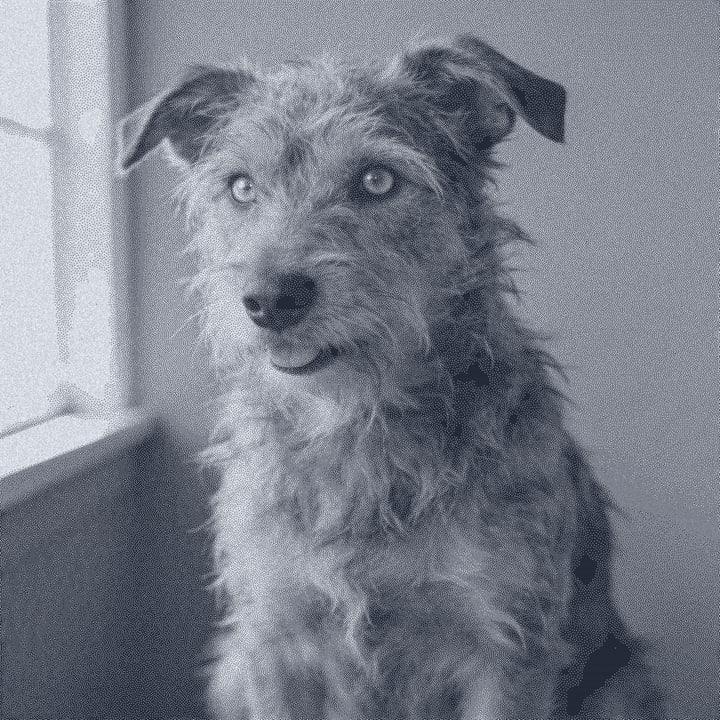
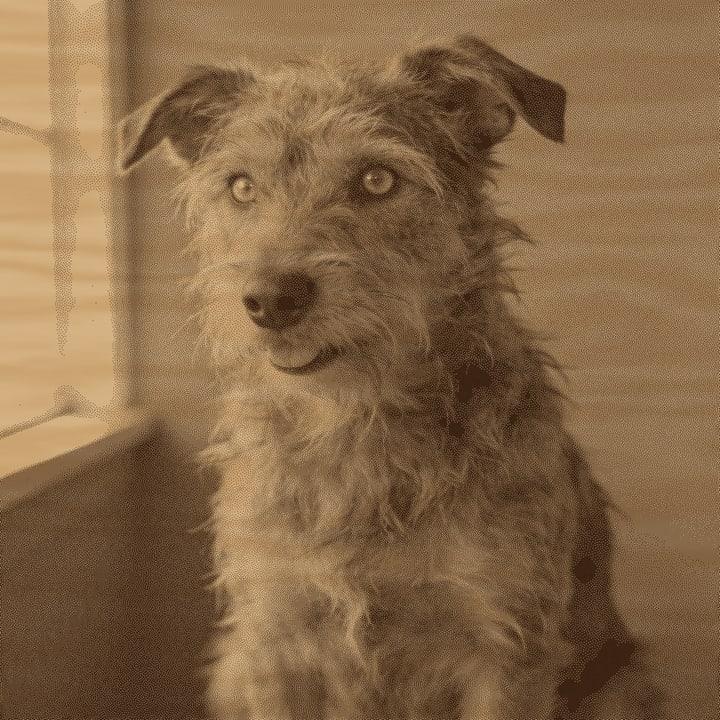
Start with your own photo.
One Click, Easy Mode and Batch run in your browser. Sign up free with an email link, no card.
Free account, email link, no card.