Batch
Batch prepare photos for laser engraving
Drop a folder, pick a recipe, and every photo comes out as a laser-ready file with your folder structure kept. It runs in your browser, in parallel.
Who it is for
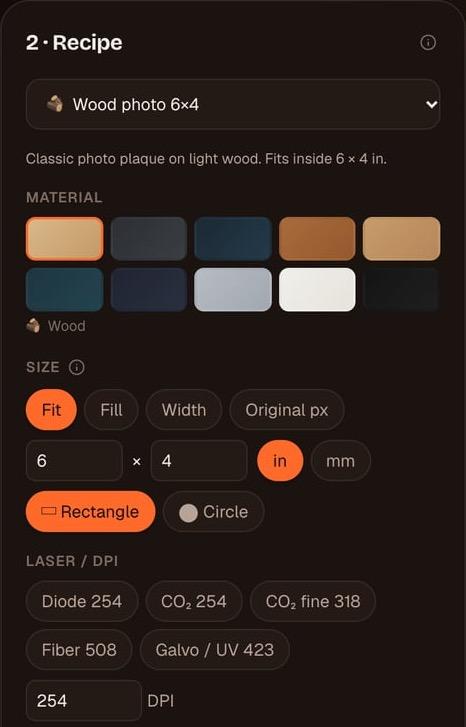
If you engrave for customers, you rarely do one photo. A wedding order, a set of pet tags, a run of coasters for an event: the material and size are the same, only the photo changes. Doing each one by hand is slow and the results drift. Batch applies one recipe to every photo so the whole order matches.
Before you run a big set, prepare one photo from it in One Click or Easy Mode, check it with the magnifier and, if you can, burn it on a scrap of the same material. Save those settings as the recipe. Then the rest of the order is prepared exactly the same way.
Recipes
A recipe is a saved bundle of settings: material, size, laser and DPI, look, dither, file type, mirror and crop shape. You can save one from a result you like in One Click, reuse it in Batch, and export it as JSON to share. Mirror is on by default for glass and clear acrylic, which are engraved from the back.
Recipes can also include AI steps that run before the laser stage, in order: restore, denoise, colorize, upscale 2× or 4×, and remove background, up to six steps. Each AI step is a paid call per image and sends that photo to the AI provider of the model you pick.
Folders in, folders out
Pick a folder on your computer or drop files and folders onto the page. Sub-folders are kept: photos/2026/wedding/a.jpg becomes out/2026/wedding/a_recipe.png, so you can find every customer's file again.
Results go into a ZIP, or straight into a folder on your computer in Chrome or Edge. Other browsers get a ZIP.
Speed and privacy
Images are processed in parallel by background workers, up to four at a time depending on how many CPU cores your computer has, so you can keep using the page while it runs. Everything happens in your browser. Photos do not leave your computer unless the recipe has AI steps.
Step by step
Choose a source
Open Batch and choose a folder on this computer, or drop photos and whole folders on the page.
Pick or build a recipe
Choose a saved recipe or set material, size, laser and DPI, look, dither, file type, mirror and shape.
Add AI steps if you need them
Optional: add restore, upscale or remove background. Each AI step is billed per image.
Choose the output
Get a ZIP, or write straight into a folder in Chrome or Edge. Sub-folders are kept.
Press Start
Images run in parallel in the background. Check a few results with the magnifier before you burn the whole set.
Questions
Short, specific answers. Every material and tool is in the guides.
- How many photos can I process at once?
- Batch works through a whole folder, running several images in parallel (up to four workers, depending on your CPU cores). Very large folders simply take longer.
- Are my photos uploaded?
- No, unless your recipe has AI steps. Batch runs in your browser. AI steps send each photo to the AI provider of the model you pick.
- Can I keep my folder structure?
- Yes. Sub-folders are kept in the output, and file names get the recipe name added.
- Why do I get a ZIP instead of a folder?
- Writing straight into a folder needs Chrome or Edge. Other browsers download a ZIP with the same structure.
- Can different photos use different materials?
- One run uses one recipe. Split the photos into folders and run each folder with its own recipe, for example one for wood and one for slate.
- Which file types can a recipe produce?
- PNG with the DPI embedded, 1-bit BMP, 24-bit BMP, or a LightBurn .lbrn2 project. See LightBurn-ready files.
Keep going
Start with your own photo.
One Click, Easy Mode and Batch run in your browser. Sign up free with an email link, no card.
Free account, email link, no card.