Material guide
Laser engraving photos on black slate
Slate turns lighter where the laser hits it, so the file has to be inverted. Get that right and slate gives some of the crispest photo engravings there are.
- The laser marks
- Lighter than the surface
- The file
- Inverted by the preset
- Default dither
- Ultra
- Mirror
- Off by default
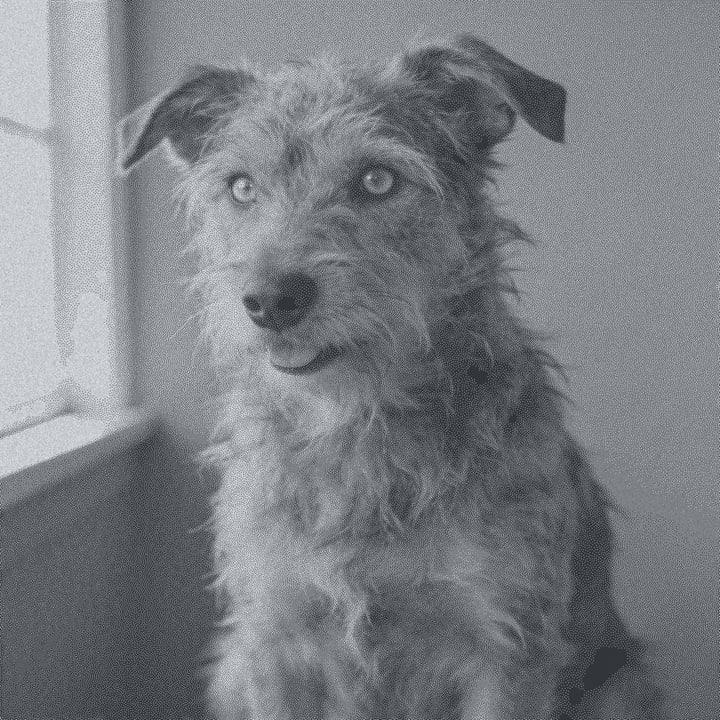
What happens on black slate
Black slate does not burn the way wood does. The laser roughens and lightens the surface, leaving a pale grey mark on the dark stone. That is the opposite of a print, where ink makes things darker. If you send a normal photo, faces come out as a negative.
The slate preset inverts the image for you. Light parts of the photo, such as skin and highlights, become burned dots, and dark parts are left as bare stone. The preset keeps the tone recipe neutral (no gamma lift, no extra contrast) and dithers with Ultra, because slate already gives strong contrast between mark and surface.
Natural slate is layered, so the surface can have small flakes, ridges and colour changes. Fine detail survives well on a flat area and less well across a ridge. Once engraved, a wipe of oil darkens the untouched stone and makes the light marks stand out.
Recommended DPI by laser type
| Laser | DPI | Notes |
|---|---|---|
| Diode | 254 | Works well on slate. Start at 254 DPI and adjust after a test card. |
| CO₂ | 254 | Standard 2 in lens. 318 DPI can add detail on a smooth tile. |
| CO₂ fine | 318 | A 1.5 in lens holds fine detail on smooth, even slate. |
| Fiber | 508 | Fiber lasers can mark slate. Test first, as the mark can look different from a diode or CO2 mark. |
| Galvo / UV | 423 | Good for small slate pieces where you want fine detail. |
The default DPI for your laser type is a good start on slate. If lines overlap, the mark goes chalky and detail fills in. Check your spot size with the DPI calculator or the DPI helper in the app.
Try it on black slate
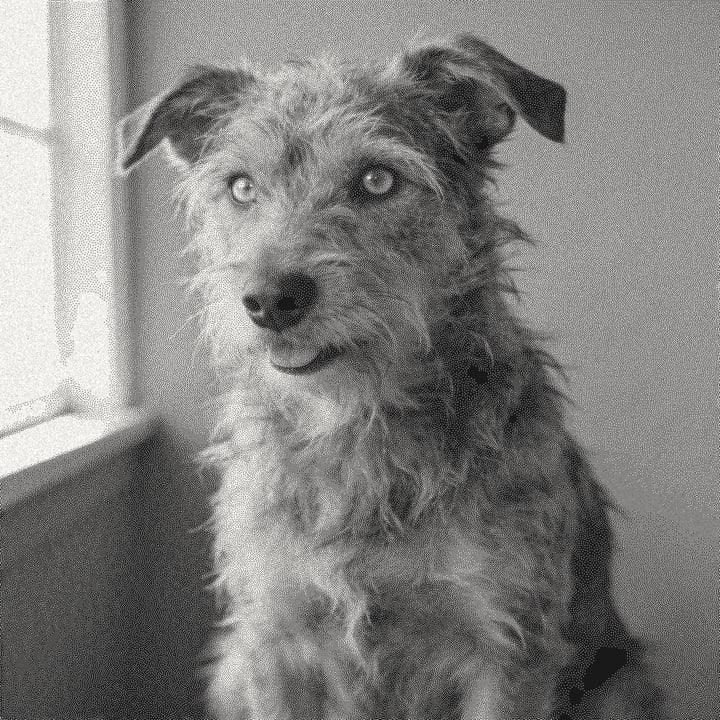
Drop a photo, or use a sample. Our real engine makes a 4 in file at 254 DPI for Black Slate with the Ultra dither, here in the page. The photo stays on your device.
No photo handy?
Downloading the file needs a free account.
How to prepare a photo for black slate
Drop your photo
It is prepared in your browser. Nothing is uploaded unless you choose an AI tool.
Pick Black Slate
The preset inverts the file so the laser burns the light parts of the photo, and sets the Ultra dither.
Crop to the blank
For round slates pick the circle crop shape so the engraving fills the stone without corners.
Set size and laser
Enter the real size of the slate and your laser type. The app sets a matching DPI.
Preview on material
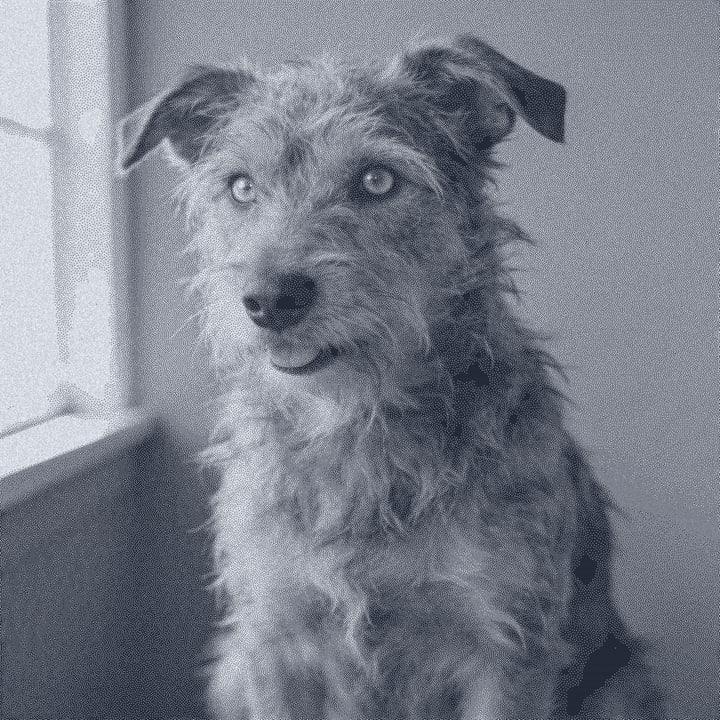
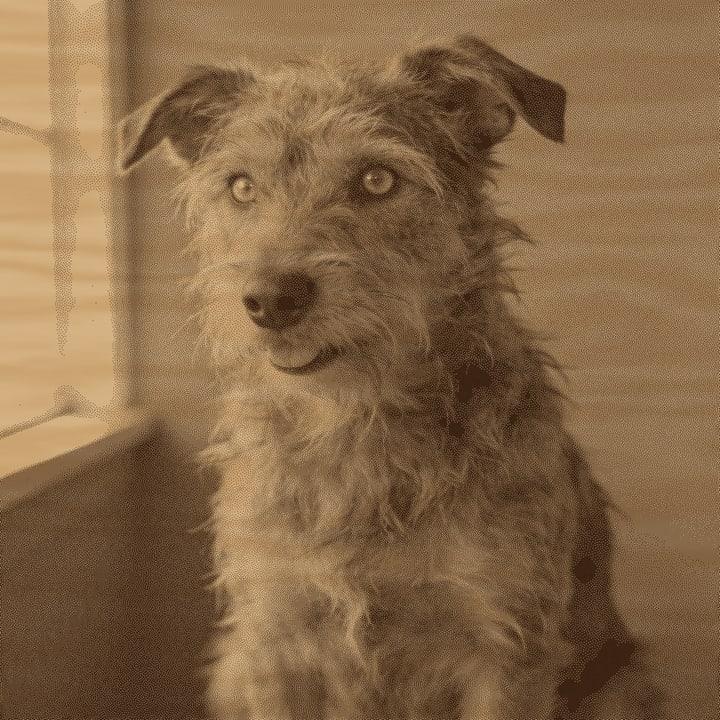
The On material tab shows light marks on dark stone. If the face reads as a negative there, something is wrong.
Export
Download a PNG, a 1-bit BMP or a .lbrn2 project for LightBurn. The file is already inverted, so do not invert again in your laser software.
Prep tips
- Wipe the slate clean and dry before engraving. Dust and oil from handling change the mark.
- Pick the flattest area of the slate for the face. Ridges break up fine detail.
- After engraving, wipe the slate with a little oil to deepen the blacks and make the marks pop.
- Run a small speed and power test grid on the back or on a spare slate first.
- Portraits with a light face on a darker background read best, because the face becomes the bright, engraved part.
- For a clean edge on round slates, use the circle crop shape and leave a small margin to the rim.
- Black slate pairs well with a cut-out subject. Background removal leaves the removed area unburned, even on inverted materials.
Common mistakes
- Inverting twice
- The file from the slate preset is already inverted. If your laser software also has an invert or negative option turned on, the photo comes out as a negative. Leave it off.
- Judging the file on screen
- The exported file looks like a negative on a white screen. That is correct. Judge it on the On material preview, which shows it on dark stone.
- Too much power
- Slate does not need much to mark. Too much power makes the marks powdery and blurs detail. Test first.
- Skipping the oil
- Fresh engravings can look dusty and low in contrast. A wipe of oil after engraving is what gives slate its deep black.
Questions
About engraving photos on black slate. More in the guides.
- Why does a photo need to be inverted for slate?
- The laser makes slate lighter, not darker. To get a positive image, the light parts of the photo must be burned. The slate preset inverts the file for you.
- What DPI should I use for slate?
- 254 DPI is a safe start for diode and CO2 lasers. A fine CO2 setup can go to 318 DPI. The DPI calculator explains the maths.
- Should I oil slate after engraving?
- Yes. A thin wipe of oil darkens the stone and deepens the contrast. Wipe off the excess so it does not stay sticky.
- Can I engrave round slate coasters?
- Yes. Crop with the circle shape and set the size to the slate's diameter. The area outside the circle is never burned.
- Which photos work best on slate?
- Photos with good light on the face and a clear subject. Pet portraits and close-up faces do well. Very dark photos give little to engrave once inverted.
- Can I try it before signing up?
- Yes. Drop a photo into the bench on this page. It runs our real engine in your browser. Downloading the file needs a free account.
Keep going
Make your black slate file.
Sign up free to download the file you made here, then use One Click, Easy Mode and Batch in the app.
Free account, email link, no card.