AI tools
Remove the background before you engrave
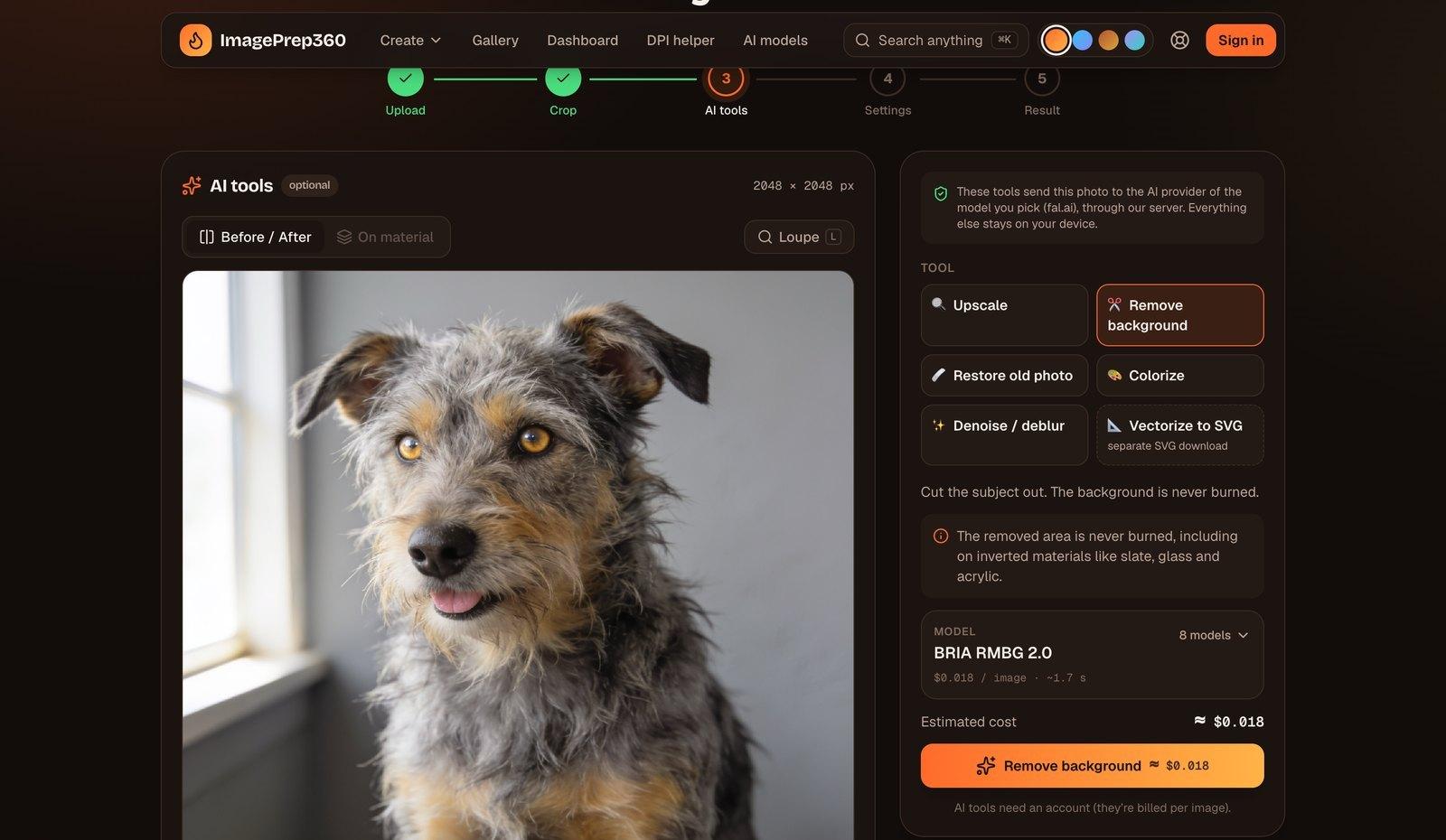
A busy background costs burn time and pulls attention from the subject. Remove background cuts the subject out, and the removed area is never burned.
Why remove the background
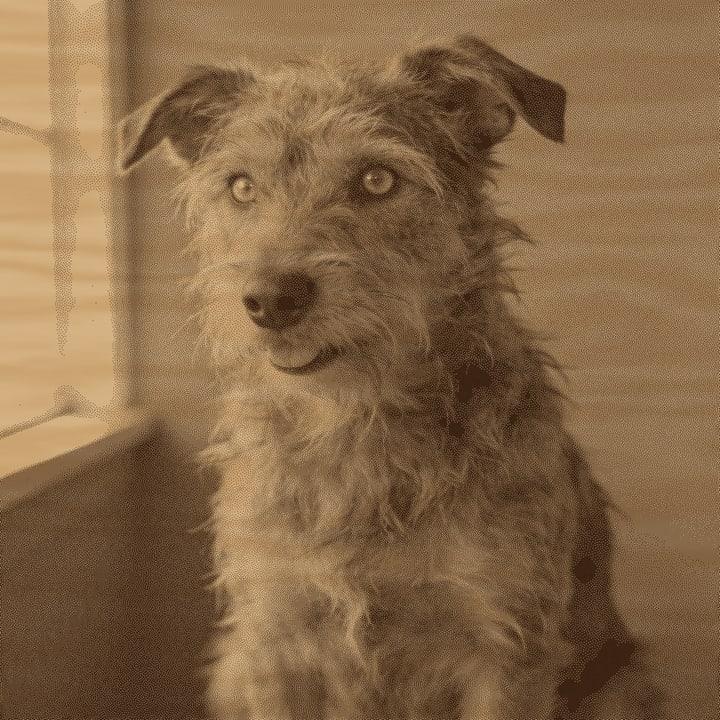
Pet portraits and people photos are usually taken in a kitchen, a garden or a living room. On the engraving that background becomes a field of dots competing with the face. Cutting it out gives a clean subject on bare material, shortens the job because the laser skips the empty area, and makes shapes like a round coaster or a heart look intentional.
Remove background is one of the AI tools, next to Upscale (2× or 4×), Restore old photo, Colorize, Denoise and deblur, and Vectorize, which gives a separate SVG download.
The removed area is never burned
This matters most on materials where the file is inverted. On black slate, glass or clear acrylic the laser makes a light mark, so a white background in an inverted file would turn into a large burned rectangle. The app treats the cut-out area as never burned on every material, so you get the subject alone on bare stone, glass or acrylic.
Picking a model
You choose which model runs each AI operation and set a favourite in AI models. Your favourite is then used everywhere. Dedicated background removal models keep your original pixels and only cut the subject out. Generative models redraw the image, which can change a face or a pet's markings, so avoid them for portraits.
Fine edges such as fur, flyaway hair and whiskers are the hard part for any model. Check the edges with the magnifier before you prepare the file, and try another model if they look chopped.
Cost and privacy
AI tools need an account and are billed per image by the AI provider. The app shows the estimated cost for the model you picked before you run it. AI tools are the one place where your photo leaves your device: it is sent to the AI provider of the model you pick, through our server. Everything else, including One Click, Easy Mode and Batch without AI steps, runs in your browser.
Step by step
Open Easy Mode and drop a photo
Upload the photo, then crop it to your blank. A crop close to the subject helps the model.
Open the AI tools step
AI tools is an optional step between Crop and Settings. Pick Remove background.
Choose the model
Your favourite model is preselected. Pick a dedicated cut-out model for portraits and check the estimated cost.
Run it and check the edges
Run the tool, then use Before and After and the magnifier to check hair, fur and fine edges.
Pick the material and prepare
Choose the material and size in Settings. The removed area stays unburned on every material, inverted or not.
Download
Download PNG, BMP or a LightBurn project as usual.
Questions
Short, specific answers. Every material and tool is in the guides.
- Does background removal work on slate and glass?
- Yes. The removed area is never burned, including on inverted materials like slate, glass and acrylic, so you do not get a burned rectangle around the subject.
- How much does it cost?
- It is billed per image by the AI provider of the model you pick. The app shows the estimated cost before you run it.
- Is my photo uploaded?
- Only for AI tools. The photo is sent to the AI provider of the model you pick, through our server. One Click, Easy Mode and Batch without AI steps run in your browser.
- Which model should I use for pet portraits?
- A dedicated background removal model, which keeps the original pixels. Generative models redraw the image and can change markings or a face.
- Can I remove backgrounds for a whole folder?
- Yes. Add Remove background as an AI step in a Batch recipe. Each AI step is a paid call per image. See batch preparing photos.
- Do I need an account?
- Yes, AI tools need an account because they are billed per image. Preparing files without AI also needs a free account to download: Start free.
Keep going
Start with your own photo.
One Click, Easy Mode and Batch run in your browser. Sign up free with an email link, no card.
Free account, email link, no card.