AI assistant setup guide
Prep an engraving with your AI assistant.
ImagePrep360’s Model Context Protocol (MCP) connector lets you ask for a material recipe, check how a photo will crop, and turn it into an engraving PNG.
Desktop setup
Use a local MCP client such as Claude Desktop or Codex. Choose a working folder for your photos and finished files.
- Install Node.js 20 or later. Get Node.js
- Download and extract the connector. Keep the executable and licenses together. Download the MCP connector (.zip)
- Add the command and arguments below to your client’s MCP settings. Replace both paths with absolute paths on your computer. Restart the client.
{
  "mcpServers": {
    "imageprep360": {
      "command": "node",
      "args": [
        "/absolute/path/imageprep-mcp.cjs",
        "--workspace",
        "/absolute/path/to/photos"
      ]
    }
  }
}
For Codex, run codex mcp add imageprep360 -- node /absolute/path/imageprep-mcp.cjs --workspace /absolute/path/to/photos. On Windows, forward slashes work in paths such as C:/Laser/Photos.
Hosted setup for ChatGPT
Anyone can look up recipes and plan a crop. A registered ChatGPT connector also lets you sign in to ImagePrep360 and turn an attached photo into a PNG.
MCP server URL
https://imageprep360-mcp.vercel.app/mcp- If your workspace already has the ImagePrep360 connector, select it in a chat. Ask which recipes work on wood. To prepare a photo, attach it, request a PNG, then follow the sign-in and consent prompts.
- To add a catalog-only connection, open Plugins in ChatGPT, choose Add custom MCP server, paste the server URL and choose No authentication.
- For a new connection that can prepare images, your workspace administrator needs an ImagePrep360 OAuth client registered for that connector’s exact callback URL. Use the assigned client ID and PKCE (S256). Public clients use no client secret.
Tools & examples
- list_recipes
- Lists recipe IDs, materials, physical sizes and DPI.Local and hosted
- plan_engraving
- Calculates the crop and output dimensions from the source width and height.Local and hosted
- prepare_png
- Returns a processed PNG from an image attachment or base64 input.Local or authenticated hosting
- prepare_file
- Reads a file in your chosen folder and saves a uniquely named engraving PNG.Local with a working folder
Try asking
- Which recipes work for a photo on wood?
- For a 4,000 × 3,000 photo, what crop and pixel dimensions would the wood-photo-6x4 recipe use?
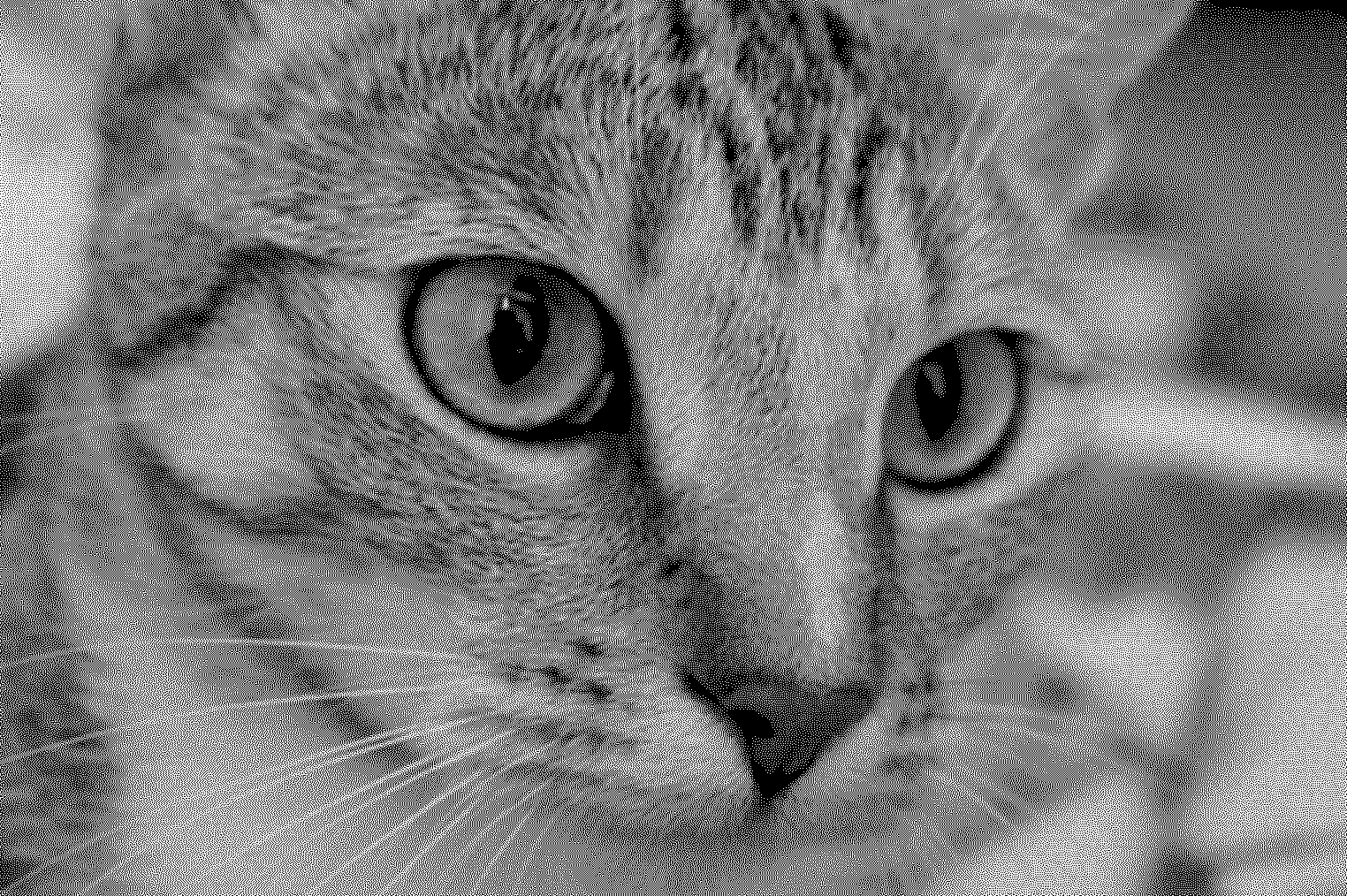
- Prepare cat.jpg in my working folder with wood-photo-6x4 and save the PNG.
File access & troubleshooting
Local file processing reads your chosen folder and saves a new file for each export. Your assistant receives the tool results. The hosted catalog uses recipe names and dimensions. Google Drive, your gallery and laser controls are outside the connector’s tool set.
My desktop client cannot find the connector
Check that the zip is extracted, the working folder exists and node --version reports 20 or later. If your client cannot find Node, use the full path to the Node executable as the command.
My image was rejected
Choose a PNG or JPEG up to 3 MiB. Both the input and the recipe’s output must fit within 8 megapixels. For a local file, select a source inside your configured folder.